Screenplays
This page covers writing a screenplay in a note and sending it out: how a note becomes a screenplay, how to write the script in plain Fountain, exporting it as a PDF or a Fountain file, the title page, the page breaks, and the settings. Screenplays are new in 1.1.0, and the editor that lays the script out as you type is new in 1.2.0.
You write Fountain as plain text, in a note like any other. In Live Preview the screenplay editor shows it laid out as on the page, with Tab and Enter as in a screenwriting program. The PDF is made when you export. Planning and revising work as they do for a short story.
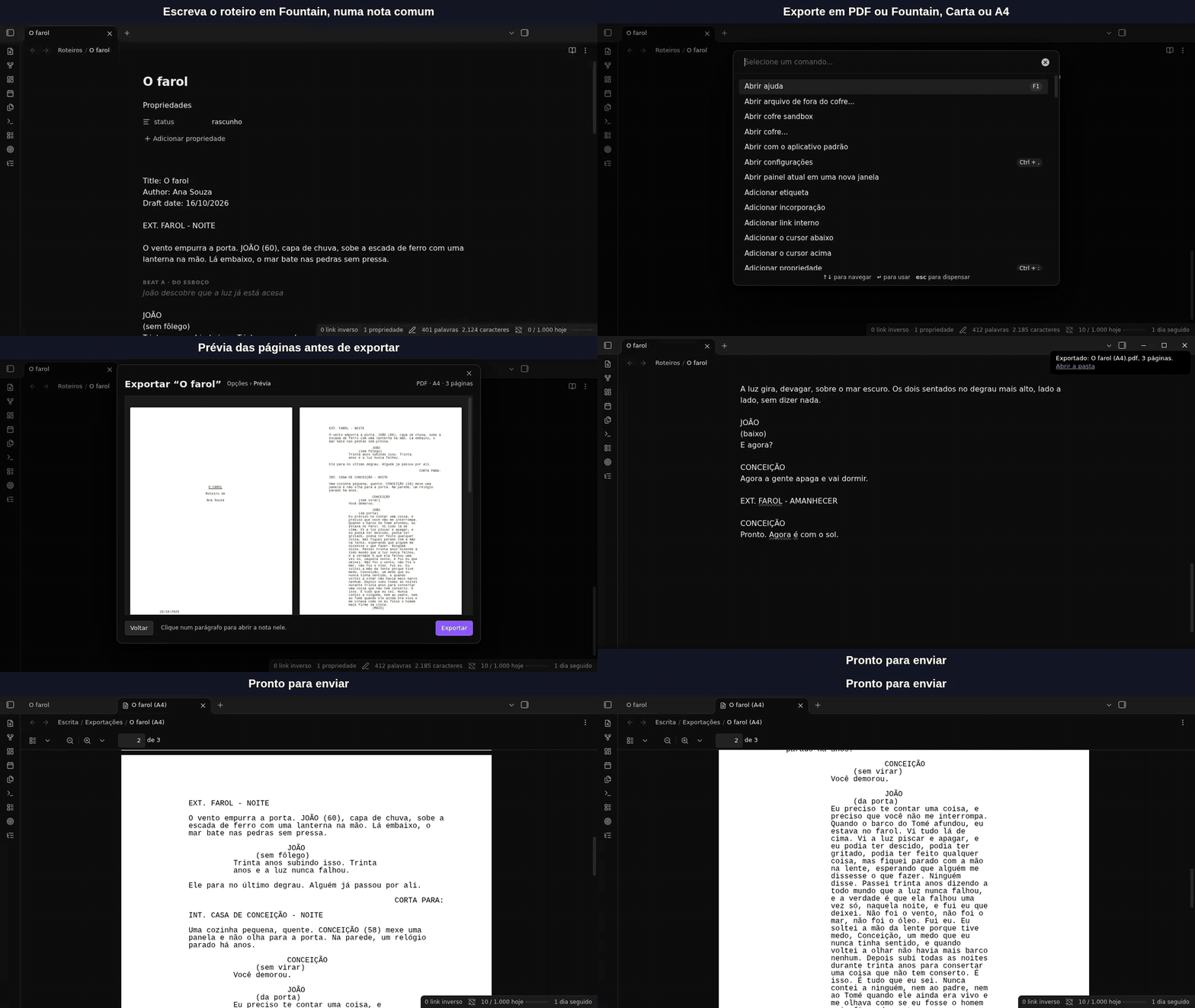
The same as a video: screenplay-export.mp4.
Other pages: Publishing, Writing, Features and settings and The world. Export has its own switch in Features › Publishing, and the export parts of this page need it on. The editor has its own switch too, in Features › Writing.
- Start a screenplay
- How a note becomes a screenplay
- Write the script
- Write in the editor
- Export a screenplay
- The title page
- How the pages break
- Settings
- When something looks wrong
Start a screenplay
Run New screenplay from the command palette (in Portuguese, Novo roteiro), or pick Screenplay in the list of New work…. It has no hotkey, and it works with every switch off: the editor switch only adds the Tab and Enter help. A small window asks for a title and a folder. The folder starts at Screenplays folder (Settings › Escrita, New works), else the folder of the open note.
The note it makes holds the draft status, the screenplay form (so Escrita reads it as a
screenplay at once, with no folder rule needed) and one beat, %% beat: … %%. It opens with the
cursor on the empty line under the beat, so with the screenplay editor on you can press Tab and
start. It has no target or deadline: a script is not counted in words.
To use your own note instead, set Screenplay template in the same group. {{title}},
{{date}} and {{time}} are filled in, and a draft status is added when it has none; add the
form yourself in that template.
How a note becomes a screenplay
A screenplay is one note. What makes it a screenplay is its form, the same property that tells a short story from a novel. Two ways to set it:
-
A property on the note. The form property is
formby default, and the screenplay word isscreenplay(roteiroin a Portuguese install):--- form: screenplay status: draft --- -
A folder. In Settings › Escrita › Forms, add a line to Form by folder, such as
Screenplays: screenplay. Every note in that folder takes the form, unless it has its own form property.
Escrita never writes the form into your notes. The form words are Form values, in this order: short story, essay, novella, novel, poem, fragment, screenplay. If you saved a list with six words before 1.1, it gains the screenplay word on its own.
The form rows work with or without the universe. In 1.1 they moved from the Universe section to a Forms group right after Books. See Features and settings.
With the universe on, a character’s name in a cue counts as an appearance in Appears in. See The world.
Only a single note is a screenplay. A book or a collection that holds screenplay notes still exports as prose (DOCX, Markdown or EPUB).
Write the script
Write in plain Fountain. The rules are the ones other screenwriting apps use, so a script you paste from one of them reads the same. A blank line separates the elements. Here is a short scene:
EXT. LIGHTHOUSE - NIGHT

The wind pushes the door open. JOHN (60), in a raincoat, climbs the iron stairs with a lamp.

JOHN
(out of breath)
Thirty years climbing this. Thirty years and the light never failed.

CUT TO:

INT. CONCEIÇÃO'S HOUSE - NIGHT
What each element looks like:
| Element | How to write it |
|---|---|
| Scene heading | A line after a blank line that starts with one of the Scene heading prefixes (INT, EXT, EST, INT./EXT, INT/EXT, I/E) followed by a period or a space. To force one, start the line with a period: .THE ATTIC. A number between hashes at the end, INT. KITCHEN - DAY #12#, is the scene number. |
| Action | Any other paragraph. An action line that starts with a tab or four spaces keeps its indent. To force action, start the line with !. |
| Character cue | A line of capitals after a blank line, with a line right below it. Accents are fine (JOÃO). An extension goes in parentheses: JOHN (V.O.). For a name that is not in capitals, start with @. A ^ at the end makes the speech dual dialogue, side by side with the one before. |
| Parenthetical | A line in parentheses inside a speech. |
| Dialogue | The lines below the cue. A speech runs to the next blank line. |
| Lyrics | A line starting with ~. |
| Transition | A line of capitals that ends in one of the Transition endings (TO:, and PARA: in a Portuguese install), with blank lines around it. To force one, start the line with >: > FADE OUT. |
| Centered text | > THE END < |
| Page break | A line of three or more =. |
| Section and synopsis | # Act one and = John finds the lamp dead. They are for you: they never print. |
Emphasis works inside any element: *italic*, **bold**, ***bold italic*** and
_underline_. A backslash before a mark makes it plain text.
Where Fountain and Markdown disagree, the screenplay wins inside a screenplay note. # is a
section, not a heading. > starts a transition or centered text, not a quote. An indented line
is never code. A --- line is action, not a scene break. Nothing is lost: every line is
read as something, and an unknown line is action.
Three more things you can write:
- Boneyard. Text between
/*and*/is left out of the script. A/*with no closing*/is plain text. - Links.
[[Note]]stays an Obsidian link and prints as its text.[[Note|text]]printstext. - A title block. Fountain’s
Title:,Credit:,Author:,Source:,Draft date:andContact:lines at the top of the note fill the title page. See The title page.
Beats, placeholders and threads
They keep working, because they are %% … %% comments:
%% beat: John finds out someone touched the lighthouse %%
%% XXX: the name of the island %%
%% thread: who moved the lamp? %%
The outline shows the beat, a placeholder is still a placeholder (and the export warns about it
the way it does for a short story), and the thread shows in the threads panel. None of them
ever prints, in the PDF or in the Fountain file. Your other %% … %% comments are left out of
the PDF. In the Fountain file they are left out too, unless you tick Keep notes.
Write in the editor
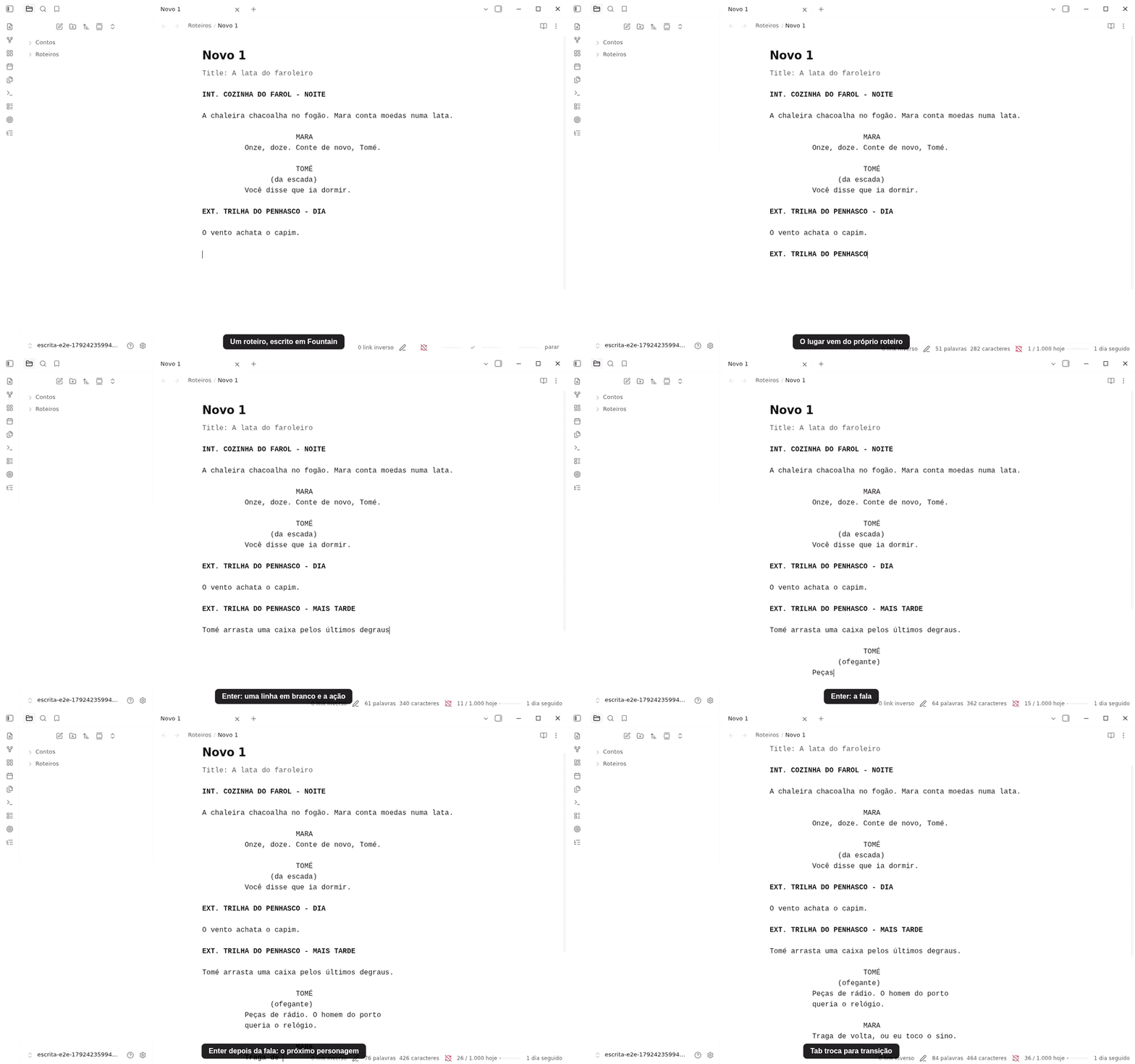
The same as a video: screenplay-editor.mp4.
The screenplay editor works in a note whose form is screenplay, and only there. In any other
note nothing changes. It has its own switch, Screenplay editor, in Features › Writing. The
switch is on in the Screenwriter and Everything starting points and off in the others;
Screenwriter turns on what a screenplay needs, including the editor. On another one, turn it
on by hand. See Features and settings.
The layout
In Live Preview the script is laid out in columns, as on the page, in Courier:
- the scene heading is bold, at the left;
- action runs the full width;
- the character cue sits in the middle, the parenthetical a little to its left, and the dialogue in a narrower column below them;
- a transition goes to the right;
- centered text is centered.
The text stays exactly as you typed it. # is still a # and --- is still ---, only drawn
the way a script draws them. An underline written as _text_ is drawn underlined. Source
mode stays plain: no layout. Reading view is unchanged too, and the export preview shows the
pages.
Tab and Enter
Both keys follow Final Draft, Fade In and Highland. Each step is one change, so one undo takes it back. Where this table has no answer, the key does what it always does in Obsidian.
| Key | Where | What it does |
|---|---|---|
| Enter | At the end of a character cue or a parenthetical | Goes to the next line, ready for dialogue. |
| Enter | At the end of dialogue | Leaves a blank line and starts the next character cue. |
| Enter | At the end of a scene heading or action | Leaves a blank line and stays in action. |
| Enter | At the end of a transition | Leaves a blank line and starts a scene heading. |
| Enter | On an empty line you opened as a cue, a scene heading or a transition | Goes back to action. |
| Tab | On an empty line | Cycles the element: action, character, transition, scene heading, and round again. |
| Tab | At the end of a character cue | Opens a parenthetical, (), with the cursor between the brackets. |
| Shift-Tab | On an empty line | Cycles the other way. |
Enter, Tab and Shift-Tab act only at the end of a line (or on an empty one). In the middle of a line they do what Obsidian does.
When you press Tab on an empty line, the name of the element shows faintly there: Character, Transition, Scene heading or Action. It is not text. It goes away when you type.
Enter flow and dialogue focus are off in a screenplay. The prose Enter flow (scene breaks, chapters) would break Fountain’s blank-line rules, so it does nothing in a screenplay note, whether or not the screenplay editor is on. Dialogue focus dims the wrong lines in a script, so it stays off there too.
Capitals and forced marks
A character cue, a scene heading and a transition are written in capitals. While the line is one of those, the letters you type come out in capitals, so you never press Caps Lock. Text already there is never changed. A parenthetical is left as you type it.
Sometimes Fountain would not read your line as the element you chose. A cue with a lowercase
letter, a scene heading with a prefix that is not on your list, or a transition that ends in
none of your transition endings. When you leave the line, Escrita adds Fountain’s forced
mark in front: @ for a cue, a period for a scene heading, > for a transition. It never adds
one while you type, and never when the line already reads right. That is the one change the
editor makes without a key press of yours, and it is the one you would have typed.
Suggestions
While you type, a list offers what the script already knows. Press Enter or click to pick one.
- On a character cue: the cues already in the script, most spoken first, with how many speeches each has. With the universe on, the names of its characters follow, marked “universe”. Only characters are offered, never places or objects.
- After a scene prefix such as
INT.: the locations already used in the script’s scene headings, most used first. - After
-in a scene heading: the times of day, from the Times of day setting (DAY, NIGHT, CONTINUOUS, LATER, andDIA, NOITE, CONTÍNUO, MAIS TARDEin a Portuguese install).
The suggestions match from the start of what you typed, ignoring case and accents.
On a phone
A phone has no Tab key, so there are two commands for the mobile toolbar: Next screenplay element (Tab) and Previous screenplay element (Shift-Tab). They are offered only in a screenplay note, and they have no default hotkey. Enter works as above.
The settings
In Settings › Escrita, the Screenplay editor section (it shows while the switch is on):
| Setting | What it does | Default |
|---|---|---|
| Font | Courier (Courier Prime if you have it installed) or Theme font, the editor’s own. | Courier |
| Times of day | The words offered after - in a scene heading. Separate them with commas or new lines. | DAY, NIGHT, CONTINUOUS, LATER (DIA, NOITE, CONTÍNUO, MAIS TARDE in Portuguese) |
The scene heading prefixes and transition endings in the Export section drive the editor too: they decide what the layout and the keys call a heading and a transition.
Export a screenplay
Open the screenplay and run Export…, or choose Export… in the file menu. When the note’s form is screenplay, the Format row offers two choices, and only these:
- PDF, in the layout a contest or a producer expects.
- Fountain, plain text you can open in another screenwriting app.
A screenplay doesn’t export as DOCX, Markdown or EPUB. The warnings, the preview, Export again and The file already exists work as they do in Publishing.
For a PDF the window has a Page row and a checkbox:
- Page: US Letter (the hint says “US”) or A4 (the hint says “Brazil, Europe”). The first time it starts from the Page size setting. After that the window remembers the choice for each screenplay.
- Scene numbers in the margins: numbers in both margins of every scene heading, as in a
shooting script. It starts from the Scene numbers setting, off by default, which is what a
contest wants. A heading with its own number (
#12#) prints that number. The others are numbered 1, 2, 3 in order.
Under the options a line says where the file goes and how long it is, for example “Courier 12, about 14 pages. Title page with the title, “Written by”, the author and the contact from the settings.” The PDF is Courier 12. Escrita does not embed a font: every PDF reader has Courier. The page number is at the top right from page 2. The title page has none.
Fountain
For a Fountain file there is no Page row and no preview, because Fountain has no pages. The line under the options says “Writes …, plain text for Highland, Fade In, WriterDuet or Final Draft. The title page becomes the Title: block.”
Keep the %% … %% notes as Fountain notes, off by default and off again each time you open
the window: your %% … %% comments go into the file as Fountain notes, [[like this]]. Beats,
placeholders and threads never go in. A note in the middle of a line moves to a paragraph of
its own, just before the block it was in. Escrita does not import Fountain, so those notes do
not come back as comments if you read the file again.
The preview
Preview shows the pages as the PDF will have them, with the same breaks: a Title page, then Page 2, Page 3 and so on. Sections and synopses don’t appear. Back returns to the options. Nothing is written until you press Export.
The warning for characters Courier cannot print
A PDF can only print the characters Courier has. Portuguese letters, dashes, curly quotes and
the ellipsis are all fine. An emoji, a star, ő or a letter from another alphabet is not. Escrita
prints a question mark in its place and says so first. The Before you send box lists the
characters (“2 characters Courier can’t print come out as “?”: ★, ő”), with a Go to line
link for each line of the note that has one. A character on the title page is named, with no
link. The button then reads Export anyway. Only the PDF has this warning: a Fountain file
keeps every character.
Where the file goes
Into the Export folder, as for any export. The names are:
Title (Letter).pdforTitle (A4).pdfTitle.fountain
If the file exists, you get the same three choices as for a manuscript (Cancel, Keep both and Replace). Escrita says “Exported: Title (A4).pdf, 14 pages.”
Export again
The window remembers, for each screenplay, the format and the page, and shows “Last export: PDF · A4 · 14 pages · 15 Oct, 21:04” with the file’s name. Export again repeats the last export. A numbered PDF is repeated with its numbers. Keep notes is not remembered: it starts off.
The title page
The PDF starts with a title page, and the Fountain file starts with a Title: block. Both are
built the same way, from these:
| Line | Where it comes from |
|---|---|
| Title | The note’s title. |
| Credit | The Credit line setting (“Written by”). It shows only when there is an author. |
| Author | The note’s author property, or Author name, in Settings › Export. It is the same rule as a short story’s byline. |
| Source | The property named in Source property (source). The line is left out when the script has none. |
| Draft date | The property named in Draft date property (draftDate). |
| Contact | Contact lines, in Settings › Export. |
So the author and the contact are the ones you already set for manuscripts. There are no separate ones for screenplays.
A property can be text or a number. A list is joined by commas, and a link such as [[A ilha]]
becomes its name.
A Fountain Title: block at the top of the note fills only what is still empty. A script
pasted from another app, with its own Author: and Contact: lines, gets a title page, and
your settings and properties win wherever they have a value. The block itself is never printed
as part of the script.
How the pages break
Escrita follows the usual industry layout: Courier 12, ten characters to the inch and six lines to the inch, a 1.5 inch left margin and a 1 inch right margin. A page holds 55 lines on Letter and 57 on A4.
- A scene heading never ends a page. The lines that follow it come with it.
- A character cue or a parenthetical never ends a page.
- A transition never starts a page. The line before it comes along.
- Action can split between lines, with at least two lines on each side.
- A speech splits across pages only at the end of a sentence. The first page ends with the
“more” label under the speech (
(MORE), or(MAIS)in Portuguese), and the next page opens with the character’s name and the “continued” label (JOHN (CONT'D), orJOÃO (CONT.)). If the speech has no sentence end where it could split, it moves whole to the next page. - Dual dialogue sits side by side and never splits.
- A
===line starts a new page. - Sections and synopses don’t print.
Two things Escrita does not do. It adds no (CONT'D) when the same character speaks again after
a line of action. It prints no CONTINUED: marks at the bottom and top of pages. If you want a
(CONT'D) after a cue, type it as an extension.
Indents follow the Fountain spec: leading tabs and spaces are ignored on every line except
action. An indented CUT TO: is a transition, an indented name above a line is a character cue,
and so on. Only a line that is action after all the rules keeps its indent. To keep an indented
line as action even when it looks like another element, type ! before the indent: ! CUT TO:.
Settings
All of them are in Settings › Escrita › Export, in a group called Screenplays. The group shows while Export is on. They all show in Obsidian’s settings search.
| Setting | What it does | English | Português (Brasil) |
|---|---|---|---|
| Scene heading prefixes | A line starting with one of these, followed by a period or a space, is a scene heading. Separate them with commas. | INT, EXT, EST, INT./EXT, INT/EXT, I/E | the same |
| Transition endings | A line in capitals ending in one of these is a transition, like CUT TO:. Separate them with commas. | TO: | TO:, PARA: |
| Page size | The PDF’s page: US Letter or A4. | US Letter | US Letter |
| Scene numbers | Numbers in both margins of every scene heading in the PDF. Leave off for a spec script. | off | off |
| Continues label | Printed under a speech that goes on to the next page. | (MORE) | (MAIS) |
| Continued label | Printed after the character’s name at the top of the next page, where the speech goes on. | (CONT'D) | (CONT.) |
| Credit line | On the title page, between the title and the author. | Written by | Roteiro de |
| Source property | A property on the script naming what it is based on, like a short story. | source | source |
| Draft date property | A property on the script holding the draft date for the title page. | draftDate | draftDate |
The title page’s author and contact are not here. They are the Author property, Author name and Contact lines rows above it, in the same section.
Each of these is a setting, so nothing about your screenplays is fixed in code. A Portuguese install takes the Portuguese words from the setup, in Language of the defaults. See Features and settings.
The form rows are in their own group, Forms, right after Books:
| Setting | What it does |
|---|---|
| Form property | The property that tells a short story from a novel or a screenplay. form. |
| Form values | The words for each form, separated by commas, in this order: short story, essay, novella, novel, poem, fragment, screenplay. |
| Form by folder | Works in these folders take this form when they have no form property. One per line, as Folder: form. |
When something looks wrong
| You see | Why | What to do |
|---|---|---|
| Export… offers DOCX and not PDF | The note’s form is not screenplay | Set the form property, or add the folder to Form by folder |
| A book with screenplays in it exports as prose | Only a single note is a screenplay | Export each screenplay from its own note |
| An indented action line is read as a cue, a heading or a transition | Indents are ignored outside action, as in the Fountain spec | Type ! before the indent |
| A cue is read as action | It has lowercase letters, or no line right below it | Write the name in capitals, or start the line with @ |
| A heading is read as action | Its prefix is not in Scene heading prefixes, or no blank line is above it | Add the prefix, or start the line with a period |
| A transition is read as action | Its ending is not in Transition endings, or it has no blank lines around it | Add the ending, or start the line with > |
| The PDF has a “?” | Courier can’t print that character | Change it, or send a Fountain file |
| The title page has no credit | The note has no author | Set the author property or Author name |
| A speech moved whole to the next page | It has no sentence end where it could split | Split it yourself with a new cue, or end a sentence earlier |
| The Screenplays group is missing | Export is off | Turn on Export in Features |
| The script is plain text, with no columns | The screenplay editor is off, the note is not a screenplay, or you are in Source mode | Turn on Screenplay editor in Features, check the form, and use Live Preview |
| Tab does nothing | The note is not a screenplay, the cursor is in the middle of a line, or the switch is off | Move to the end of the line, or run Next screenplay element |
A @, a period or a > appeared at the start of a line | Fountain would have read the line as another element, so Escrita added the forced mark when you left it | Keep it, or undo it and change the line |
| The suggestions don’t show | The switch is off, or the line is not a cue, a heading with a prefix, or after - | Type the cue in capitals, or after the prefix |