Playing CHORD mode
CHORD mode turns GrainOS into a chord instrument. You hold a button and a chord sounds. You let go and it fades away. There is no kick, no groove and no ENERGY dial. There are only your chords, an optional soft beat, and a loop you can record and play over.
This page is a tutorial. It goes from “make a sound” to “record a loop and play over it”. It does not cover TECHNO mode. For that, see 02-first-jam-techno. If you have not started the machine yet, begin with 01-getting-started.
How buttons are named here. Miyoo names come first. The PC and web keyboard keys follow in brackets. Examples: R2 (PC: 2), A (PC: Z), L2 (PC: Shift or 1). The full table is in 06-reference. The screen always shows the names of the machine you are on.
What you need to know first
- A chord is several notes played together.
- A set is a group of 8 chords that sound good together. CHORD mode gives you one set at a time, and each of the 8 chords sits on its own button.
- A key is the home note the chords are built around.
- A bar is one measure of music: 4 beats.
1. Switch to CHORD mode
- Tap MENU (PC: Esc). The menu opens. The music keeps playing underneath.
- Press DOWN until the Mode row is selected. It shows TECHNO.
- Press RIGHT (or LEFT). It now shows CHORD.
- Tap MENU again to close the menu.
The sound fades out for about half a second, the mode changes in silence, and the sound fades back in. The screen shows ”…” for a moment while it swaps.
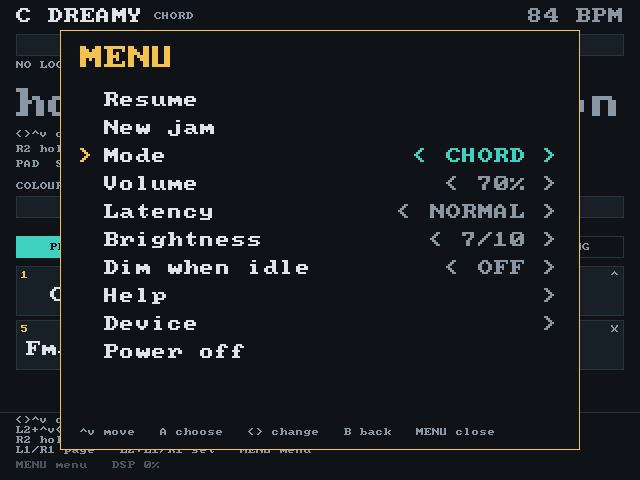
Good to know:
- The mode is saved on the Miyoo. Next time you switch on, you start in the mode you left. (The web build saves nothing.)
- The jam settings are not saved. Each power-on starts the default jam again.
- Each mode remembers its own settings while the machine is on. Go to CHORD and back, and TECHNO is as you left it.
- CHORD mode has fewer menu rows than TECHNO. There is no Surprise me, Roll groove or Undo roll.
2. Your first sound
The first time you enter CHORD mode, it starts like this:
- key C
- set DREAMY
- tempo 84 BPM (beats per minute)
- sound SOFT
- style PAD
- no beat
The screen says “hold a chord button”. Nothing sounds until you do.
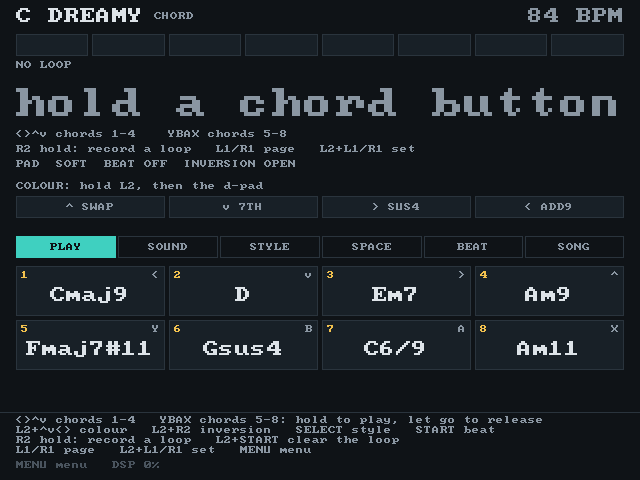
Hold LEFT. You hear chord 1, Cmaj9. Let go. It rings out and fades.
The eight chord buttons are in the same order as the screen grid:
| Chord | Button | PC key |
|---|---|---|
| 1 | LEFT | Left arrow |
| 2 | DOWN | Down arrow |
| 3 | RIGHT | Right arrow |
| 4 | UP | Up arrow |
| 5 | Y (left of the diamond) | A |
| 6 | B (bottom) | X |
| 7 | A (right) | Z or Space |
| 8 | X (top) | S |
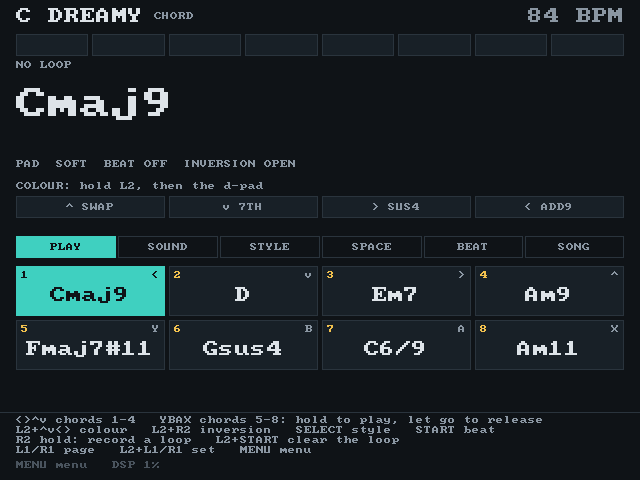
The four face buttons follow the same left, bottom, right, top pattern as the d-pad. In the picture below, chord 1 is held. Its cell lights up and its name is shown big.
Try these:
- Hold one chord, then also press a second. The newest chord sounds. Let go of it, and the one underneath sounds again. You can stack up to 8.
- Move from one chord to another while still holding. The notes glide to the nearest notes of the new chord instead of restarting. This is called voice leading. It is what makes chord changes sound smooth. (In STRUM style each new chord is strummed again instead of gliding.)
The four face buttons (Y, B, A, X) play chords 5 to 8 on every page of CHORD mode. The d-pad plays chords 1 to 4 only on the PLAY page. On the other pages the d-pad edits the page’s settings.
3. The 8 chords of DREAMY in key C
| Chord | Name | What it is |
|---|---|---|
| 1 | Cmaj9 | home chord, soft and open |
| 2 | D | a bright major chord |
| 3 | Em7 | gentle and a little sad |
| 4 | Am9 | sad, warm |
| 5 | Fmaj7#11 | floating, dreamy |
| 6 | Gsus4 | unresolved, wants to move |
| 7 | C6/9 | home chord again, a different colour |
| 8 | Am11 | sad, wide |
You do not need to know music theory to use these. Hold them and listen.
4. A first progression to learn
A progression is a chord sequence. Here is one to learn by hand, in the default key and set. Hold each chord for about one bar (4 beats), then move on without letting the notes go silent.
Dreamy loop: 1, 4, 5, 6, then back to 1.
| Bar | Chord | Button |
|---|---|---|
| 1 | Cmaj9 | LEFT |
| 2 | Am9 | UP |
| 3 | Fmaj7#11 | Y |
| 4 | Gsus4 | B |
Then go back to Cmaj9 on LEFT.
The Gsus4 in the last bar leaves a question. Going back to Cmaj9 answers it.
Another one to try: 1, 3, 5, 2. That is Cmaj9, Em7, Fmaj7#11, D. It uses LEFT, RIGHT, Y, DOWN.
5. Colours: change a chord while you hold it
A colour changes the chord you are playing. Colours work on the PLAY page only. There are four, all on L2 plus the d-pad. L2 is the “shift” button. You hold it while you press another.
| Buttons | Colour | What it does |
|---|---|---|
| L2 + UP | SWAP | Major turns to minor, and minor to major. Press again to undo. |
| L2 + DOWN | 7TH | Adds the 7th note. Press again to remove it. If the chord already has a 7th, nothing changes. |
| L2 + RIGHT | SUS | First press: SUS4, the third note becomes the 4th. Second press: SUS2, the third becomes the 2nd. Third press: off. |
| L2 + LEFT | ADD9 | Adds the 9th note. Press again to remove it. If the chord already has a 9th, nothing changes. |
You can mix them. For example SWAP and 7TH together.
In the default DREAMY set, chords 1, 3, 4, 5 and 8 already have a 7th or 9th. To hear 7TH or ADD9 work, try them on chord 2 (D) or chord 6 (Gsus4).
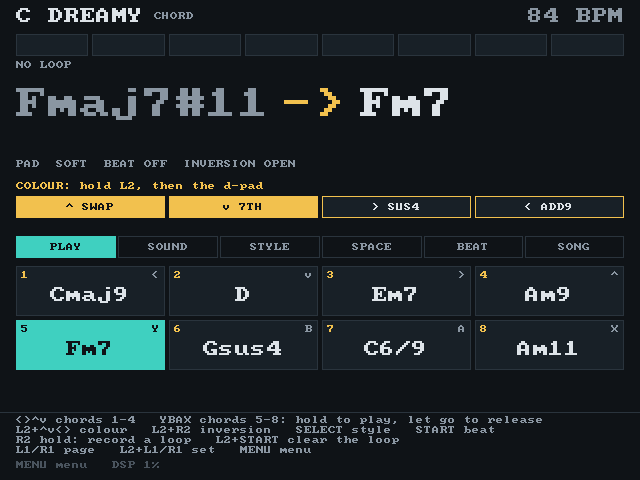
The colour is shown on screen as the plain name, an arrow, and the coloured name. Here chord 5 is held with SWAP and 7TH on:
How colours behave:
- Colours change the chord right away, while it sounds. The notes glide.
- A colour belongs to the chord you were holding. If you press a new chord without L2, it starts plain again.
- If you press a chord while L2 is held, it keeps the colour.
Two ways to use them:
- Hold a chord. Then hold L2 and tap the d-pad.
- Hold L2 and tap the d-pad first. Then press a face-button chord.
Tip. The d-pad is both a chord button (chords 1 to 4) and the colour control. If you hold chord 1 on LEFT and then press L2 + LEFT, the press is ignored. For colouring, play your chord on a face button (Y, B, A, X, chords 5 to 8) and use the d-pad with L2 for the colour.
6. Inversions
An inversion changes which note of the chord is lowest. The same chord, a different shape.
Press L2 + R2 (PC: Shift + 2) to step to the next inversion. It cycles and wraps around:
| Inversion | What it means |
|---|---|
| ROOT | The root note (the chord’s name note) is the lowest. |
| 1ST | The lowest note moves up an octave. |
| 2ND | The lowest two notes move up an octave. |
| OPEN | Spread out: root, then fifth, then the rest above. This is the default. |
R2 on its own never changes the inversion. It records a loop (section 11). The inversion works on any page.
When you move from chord to chord, the engine keeps your inversion unless another voicing is clearly smoother. The current one is shown under the chord name on every CHORD page, for example “PAD SOFT BEAT OFF INVERSION OPEN” (style, sound, beat, inversion).
7. Play styles: PAD, STRUM, HARP, PULSE
The style decides how the notes of a chord are played. Press SELECT (PC: Backspace) to step to the next style. It wraps around and works on any page. You can also set it on the STYLE page. To reach the STYLE page, press R1 (PC: W) twice. The pages in order are PLAY, SOUND, STYLE, SPACE, BEAT, SONG.
| Style | What it does |
|---|---|
| PAD | The notes sound together and sustain while you hold. The default. |
| STRUM | The notes come one after another, like a guitar. A press from silence strums up. A press while another chord is still held strums down. |
| HARP | One note for every 16th note, stepping up through the chord. It restarts at the bottom each time you press. |
| PULSE | The whole chord is struck again on every 8th note. |
(An 8th note is half a beat. A 16th note is a quarter of a beat.)
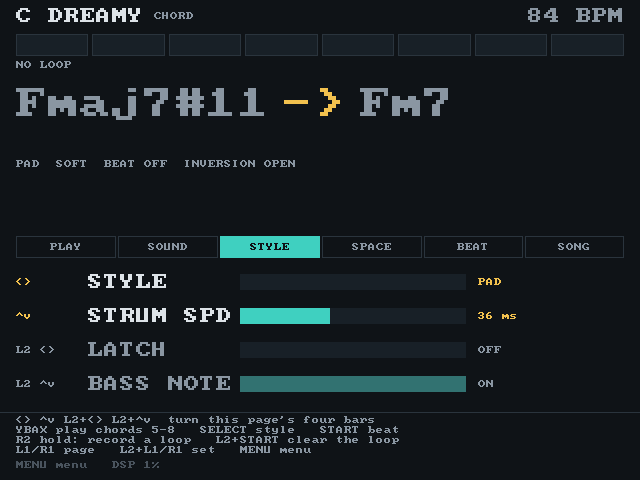
The STYLE page has four settings. Use LEFT/RIGHT, UP/DOWN, L2+LEFT/RIGHT and L2+UP/DOWN to edit the four rows.
| Row | Setting | Range | Default |
|---|---|---|---|
| LEFT/RIGHT | STYLE | PAD, STRUM, HARP, PULSE | PAD |
| UP/DOWN | STRUM SPEED | 20 to 60 ms | 36 ms |
| L2 + LEFT/RIGHT | LATCH ON BEAT | OFF, ON THE BEAT | OFF |
| L2 + UP/DOWN | BASS NOTE | OFF, ON | ON |
- STRUM SPEED is the gap between strummed notes. A lower number is a faster strum. It only matters in STRUM style.
- LATCH ON BEAT makes your presses and releases wait for the next beat line. Your timing gets snapped to the beat, so loose playing sounds tight.
- BASS NOTE adds a low sine-wave bass under the chord. It plays the chord’s root note.
8. Sounds, attack and release
Go to the SOUND page with R1 (PC: W). L1 (PC: Q) goes back a page. The pages in order are PLAY, SOUND, STYLE, SPACE, BEAT, SONG.
| Row | Setting | Range | Default |
|---|---|---|---|
| LEFT/RIGHT | SOUND | SOFT, KEYS, GLASS, STRINGS | SOFT |
| UP/DOWN | ATTACK | 5 ms to 1.5 s | 65 ms |
| L2 + LEFT/RIGHT | RELEASE | 40 ms to 6.0 s | 629 ms |
| L2 + UP/DOWN | BRIGHTNESS | 0 to 100 % | 50 % |
The four sounds:
- SOFT: two detuned saw-wave voices through a warm low-pass filter (a filter that removes the highs).
- KEYS: an electric-piano-like tone.
- GLASS: a bell-like pad with a slow shimmer.
- STRINGS: wider, brighter detuned voices with a slow vibrato.
ATTACK is how fast a chord fades in when you press. A small number is sudden. A big number is a slow swell.
RELEASE is how long the chord rings after you let go. A short release stops quickly. A long one lets chords wash into each other. Hold the d-pad to sweep a value, and the longer you hold, the faster it moves.
BRIGHTNESS goes from dark to bright.
Try this: set ATTACK to about 0.5 s and RELEASE to about 3 s with the PAD style. The chords swell in and fade out slowly.
9. The space: chorus, reverb, echo, haze
The SPACE page adds room around the sound.
| Row | Setting | Range | Default |
|---|---|---|---|
| LEFT/RIGHT | CHORUS | OFF, 1 to 100 % | 50 % |
| UP/DOWN | REVERB | 0 to 100 % | 80 % |
| L2 + LEFT/RIGHT | ECHO | 0 to 100 % | 30 % |
| L2 + UP/DOWN | HAZE | 0 to 100 % | 30 % |
- CHORUS thickens the sound across the stereo field.
- REVERB is the sound of a room.
- ECHO repeats the sound.
- HAZE records your chords and plays them back as a cloud of tiny grains. More haze, more cloud.
10. The soft beat
CHORD mode has no drums by default. You can add a quiet beat. Press START to turn it on. The first time, you get BRUSH. Press START again to switch it off. The next time, it resumes the last beat you used. START works on any page.
The BEAT page edits it:
| Row | Setting | Range | Default |
|---|---|---|---|
| LEFT/RIGHT | BEAT | OFF, BRUSH, LO-FI | OFF |
| UP/DOWN | LEVEL | 0 to 100 % | 50 % |
| L2 + LEFT/RIGHT | TEMPO | 40 to 200 BPM | 84 |
| L2 + UP/DOWN | SWING | 0 to 30 % | 8 % |
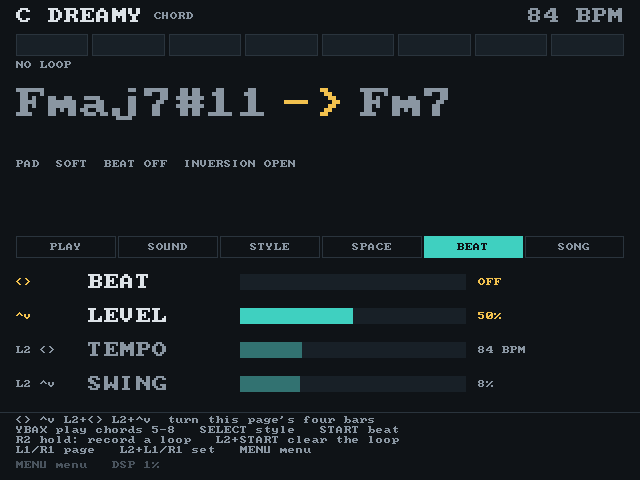
- BRUSH: a soft kick on beat 1 and a quieter one on the ‘and’ of beat 3, a brushed snare on beats 2 and 4, and shaker 8th notes with an accent on each beat. No hats.
- LO-FI: half-time feel. Kick on 1, a quiet ghost kick near the end of beat 3, a dusty snare on 3 only, and soft swung hats.
- SWING delays every second 16th note. It also moves the HARP’s plucks.
- The beat never ducks (pushes down) the chords.
The tempo is shared with the SONG page. Changing it in either place changes both.
11. Record a loop with R2
The loop is the main trick of CHORD mode. You play a chord pattern once. The machine repeats it. Then you play over it.
The loop row is the row of 8 boxes at the top of every CHORD page. Each box is one bar. The loop is recorded on the bar grid of the tempo, and your presses snap to the nearest 8th note. It can be up to 8 bars long. You do not need the beat on.
To record:
- Hold R2 (PC: 2) on any page. The screen says “REC: starts on the bar line” in yellow. It is waiting for the next bar to start.
- When the bar line comes, it says “RECORDING bar 1” in red. Play your chords. The machine records them with their colour and inversion.
- Keep holding R2 for as many bars as you want, up to 8.
- Let go of R2. The bar you are in finishes first (“REC: closing on the bar line”). Then the loop closes and plays from its start.
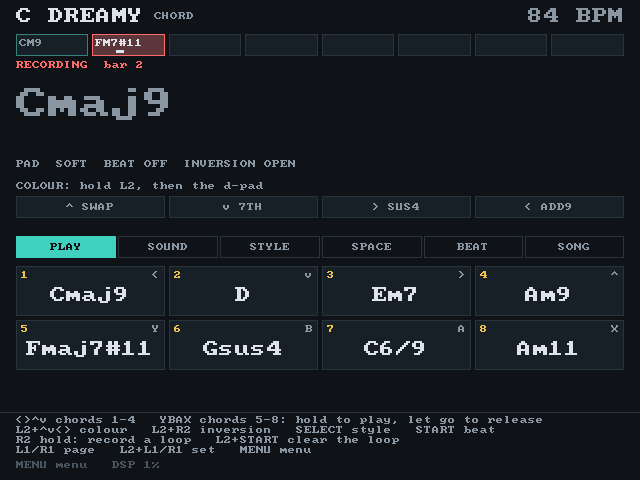
If the loop reaches 8 bars, it closes by itself. If you let go of R2 before the bar line, nothing is recorded. If you record no chord at all, the loop is dropped.
While it plays, the screen says “LOOP n BARS” in teal. Each box shows the chord at the start of that bar in a short spelling. A ”+” means the chord changes more than once inside the bar. A single change may not show a ”+”. A ”-” is a rest. A white play head sweeps the bar being played.
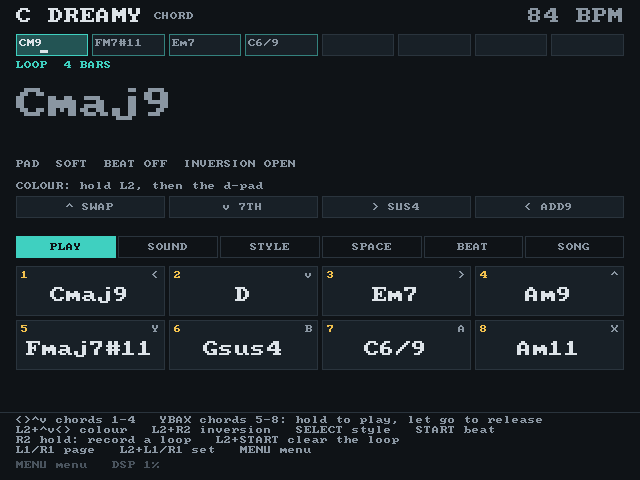
(The two loop pictures show a sample loop. Your own boxes will show the chords you played.)
A tap is at least one 8th note long. Do not rush the last bar. Release R2 anywhere in it and that whole bar still gets recorded.
12. Play over the loop
While the loop plays, hold any chord by hand. Your chord replaces the loop’s chord for as long as you hold it. When you let go, the loop’s chord comes back. In the chord grid, a chord that the loop is playing and nobody is holding shows in purple.
This is how you play a melody-like top line over the loop. You can also change the sound, style and space while the loop runs, to shape it live.
To add more (overdub):
- While the loop plays, hold R2 again. The screen says “OVERDUB bar x of n” in red.
- The replacing begins at the next bar line.
- Every bar that starts while R2 is held is replaced by what you play. If you play nothing, that bar becomes a rest.
- Let go of R2 partway through a bar. That bar finishes, then everything plays as normal.
13. Clear the loop
Press L2 + START (PC: Shift + Enter). The loop is cleared at once. It works on any page. If there is no loop, the loop row flashes “NO LOOP TO CLEAR” for a moment.
The loop is not kept if you change mode, and it is not saved when you switch off. Menu > New jam clears it too. New jam also lets go of held chords and sets CHORD mode back to its defaults (DREAMY, C, 84 BPM).
14. Change the set and key
The set. Press L2 + R1 (PC: Shift + W) for the next set, or L2 + L1 (PC: Shift + Q) for the previous one. It changes at once and wraps around. The 8 sets are:
DUB, DEEP, MELANCHOLY, DREAMY, DORIAN, SUS, PLANE, LOFI.
The set name shows in the header at the top left, next to the key, like “C DREAMY CHORD”.
Notes on the set:
- The 8 chord buttons stay the same. Their chords change.
- Set moods in a few words:
- DUB: minor with rich 9th chords.
- DEEP: lush deep-house 9ths.
- MELANCHOLY: sad, minor 7ths.
- DREAMY: major and floating (the default here).
- DORIAN: minor with a bright sixth note.
- SUS: open, with no third note.
- PLANE: one m9 chord shape slid in parallel.
- LOFI: jazzy major with 9ths and 13ths.
The key and tempo. Go to the SONG page. It has three rows:
| Row | Setting | Range | Default |
|---|---|---|---|
| LEFT/RIGHT | KEY | C up to B | C |
| UP/DOWN | SET | the 8 sets above | DREAMY |
| L2 + LEFT/RIGHT | TEMPO | 40 to 200 BPM | 84 |
The chords move to the new key at once.
15. A quick recipe: your first loop
- Menu > Mode > CHORD. Close the menu.
- Press START to bring in the BRUSH beat.
- Hold R2. Wait for “RECORDING bar 1”.
- Play LEFT, UP, Y, B for four bars (one chord per bar). Let go of R2 during bar 4.
- The loop starts to play. Hold chord 5 (Y) now and then to play over it.
- Press R1 three times to reach the SPACE page (PLAY, SOUND, STYLE, SPACE). Hold L2 and press UP or DOWN to move the haze.
- Press L2 + START to clear the loop and start again.
Cheat sheet
| Buttons | CHORD mode |
|---|---|
| LEFT, DOWN, RIGHT, UP | chords 1 to 4 (PLAY page only) |
| Y, B, A, X (PC: A, X, Z, S) | chords 5 to 8 (every page) |
| L2 + UP / DOWN / RIGHT / LEFT (PLAY page) | colour: SWAP / 7TH / SUS / ADD9 |
| L2 + R2 | next inversion |
| R2 (hold) | record a loop, or overdub |
| L2 + START | clear the loop |
| SELECT | next play style |
| START | beat on or off |
| L1 / R1 | previous or next page |
| L2 + L1 / L2 + R1 | previous or next set |
| MENU | open the menu |
| VOL+ / VOL- | volume |
What does not exist in CHORD mode: stutter, echo throw, freeze, fill, build, roll, undo and ENERGY. Those belong to TECHNO mode. Samples are different: a sample you pick in Menu > Samples also feeds the haze in CHORD mode (see 04-how-to). The L2+SELECT shortcut is TECHNO only.
Where to go next
- More step-by-step tasks: 04-how-to
- Advanced playing: 05-advanced
- Every button and value: 06-reference